how to
BAKE bread
in figma draw
A 10-step illustration tutorial.
Hello! My name is Adanna and I recently got a chance to create a Bread themed logo for Figma (yay) and thought I would share my process on how to illustrate bread in Figma Draw. I initially made this website and bread illustrations to try out the design workflow from Figma Draw to Figma Sites. Thanks for visiting and let’s get started! 🍞 🥐
🔔 Note
This tutorial requires some familiarity with Figma to follow along. I also recommend exploring the Figma Draw Playground file first to learn about all the cool illustration features available!

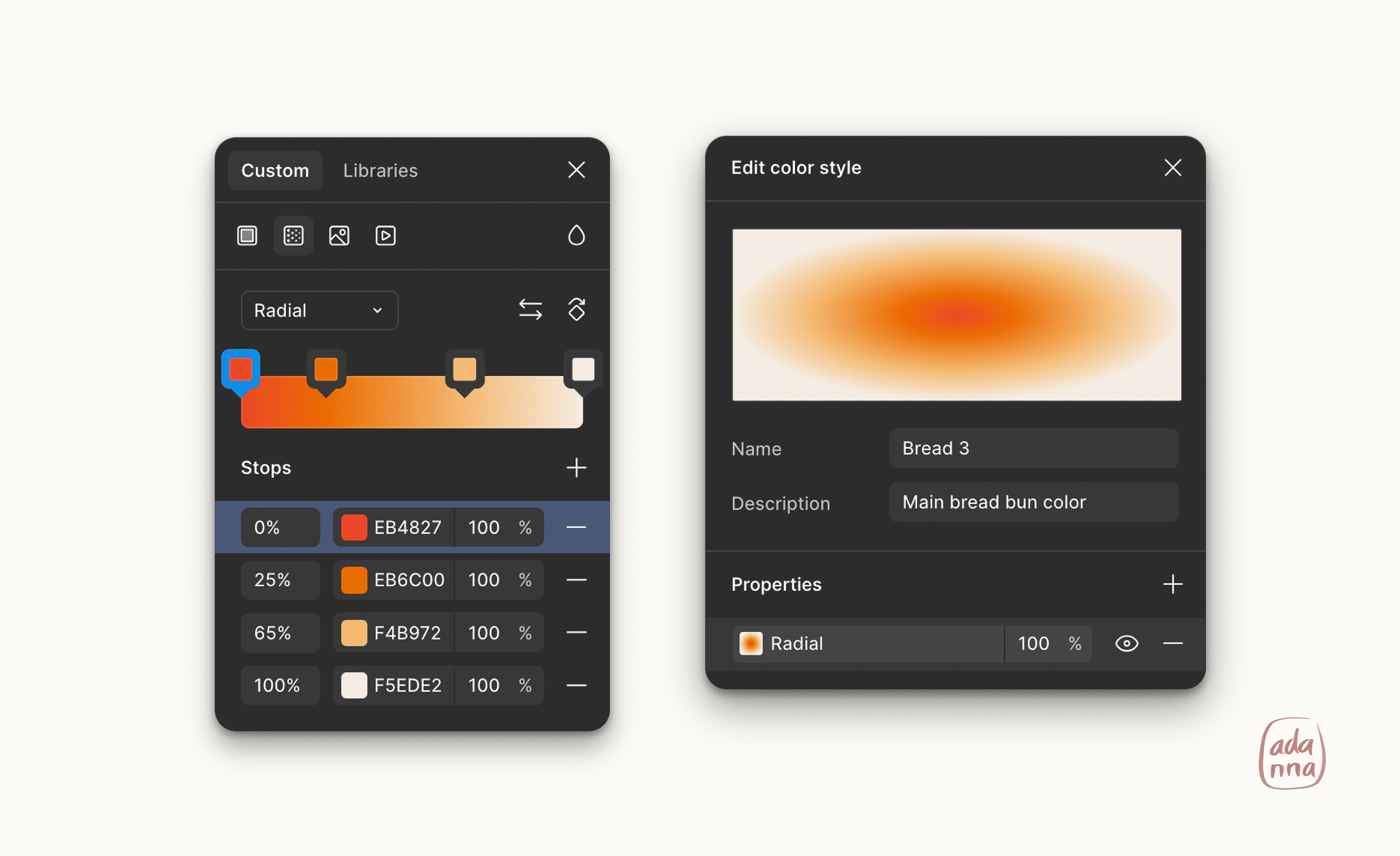
- Set up your bread gradient
We will re-use this radial gradient for all our bread buns. You can set up color styles or variables for the individual colors if need be.
- Start with a simple shape
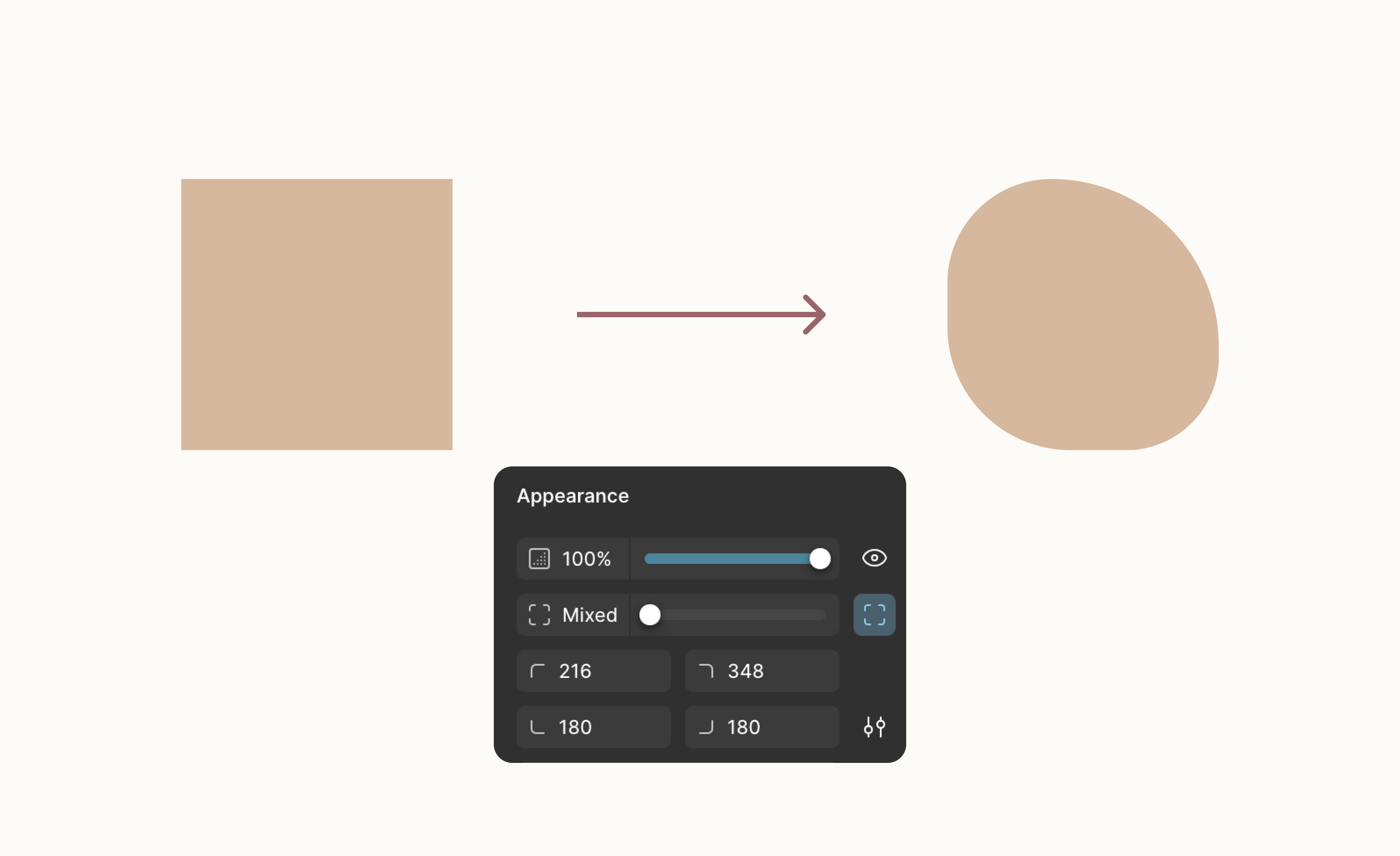
Bread comes in all shapes and sizes. 😌 In this tutorial, we will be making Brioche buns! We will start with a simple rectangle and edit the radius to make it feel organic. You don’t have to use my exact values.
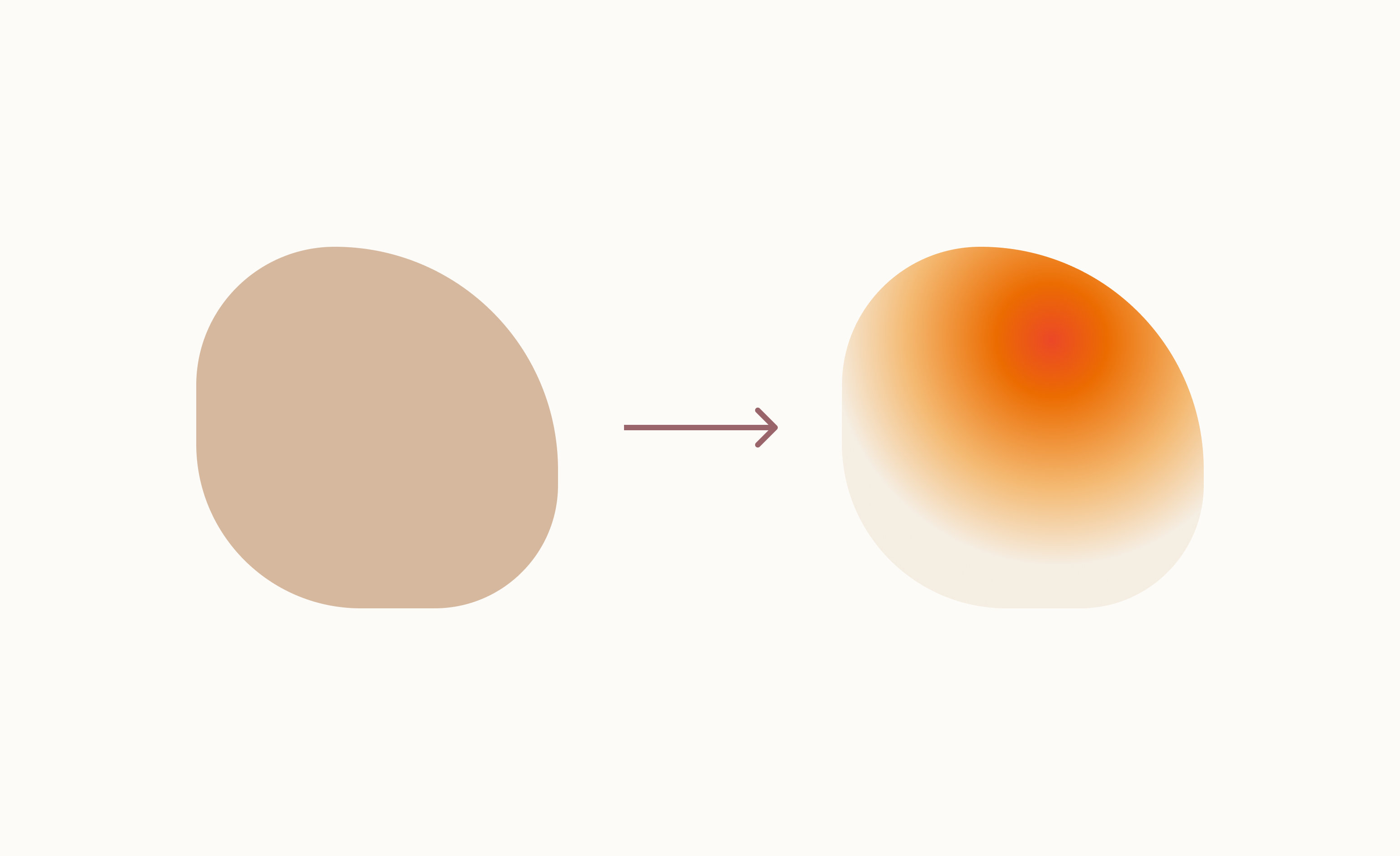
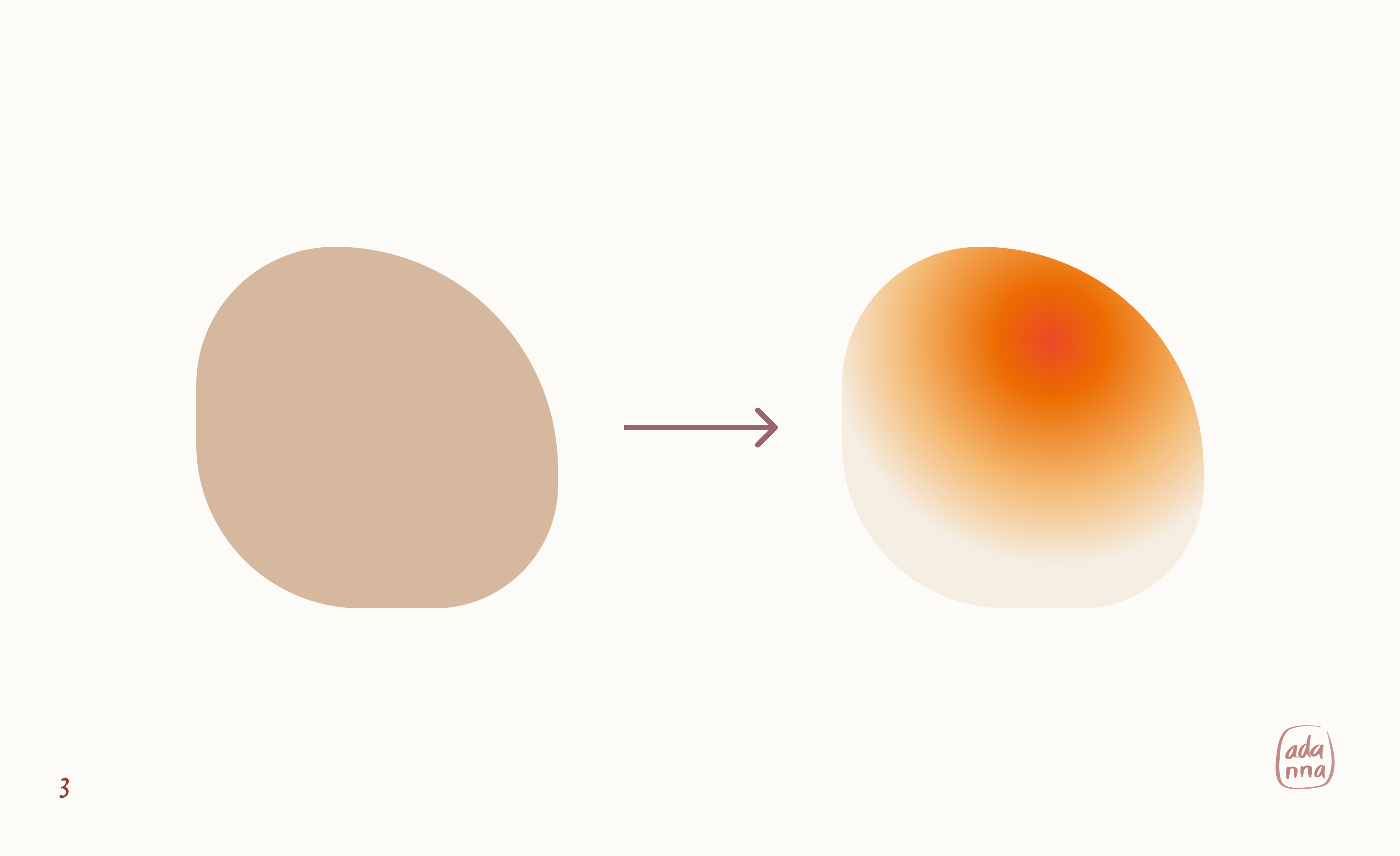
- Apply the gradient
Apply the radial gradient to the shape. It already looks like a bun. 10/10.
- Apply a texture effect
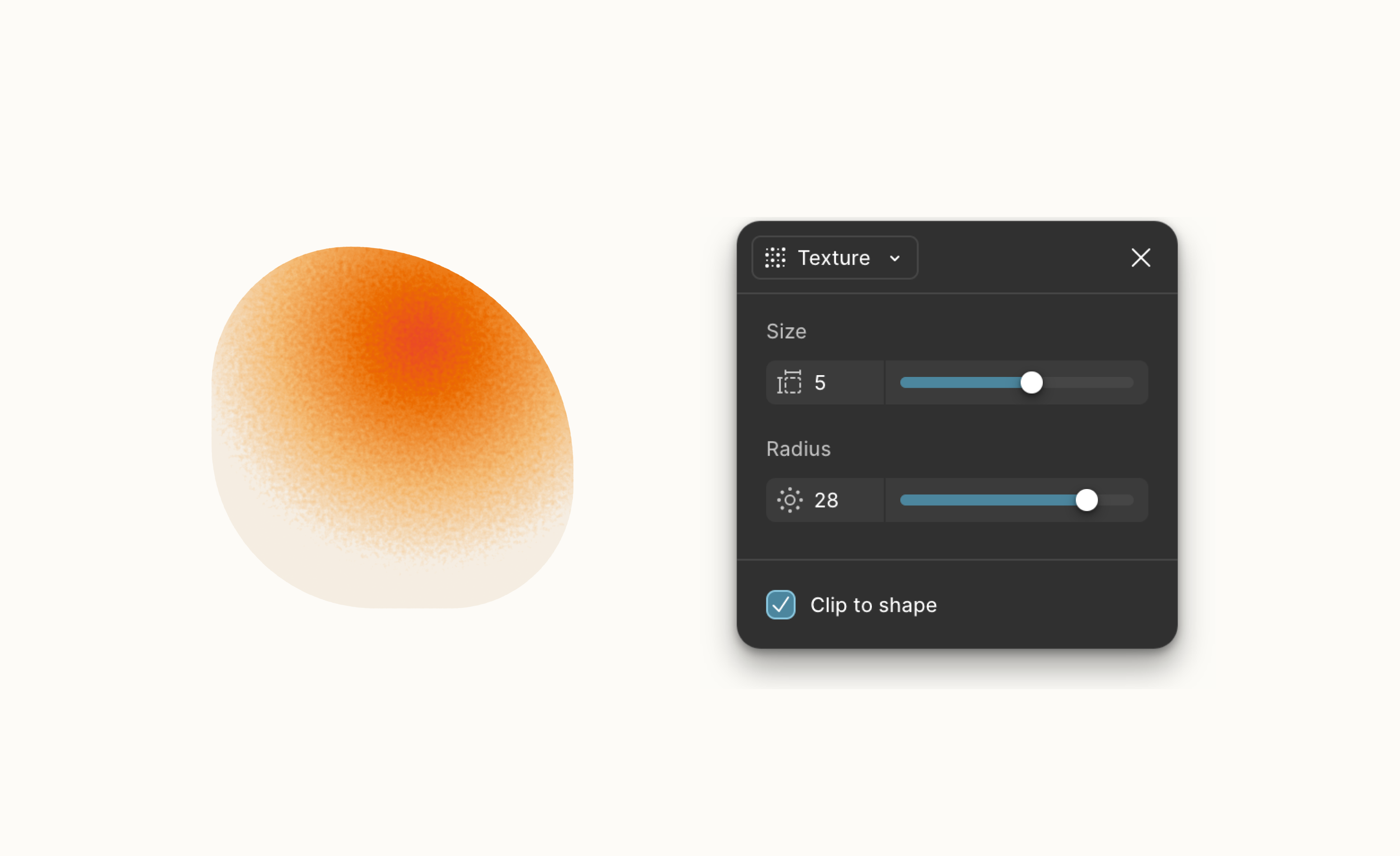
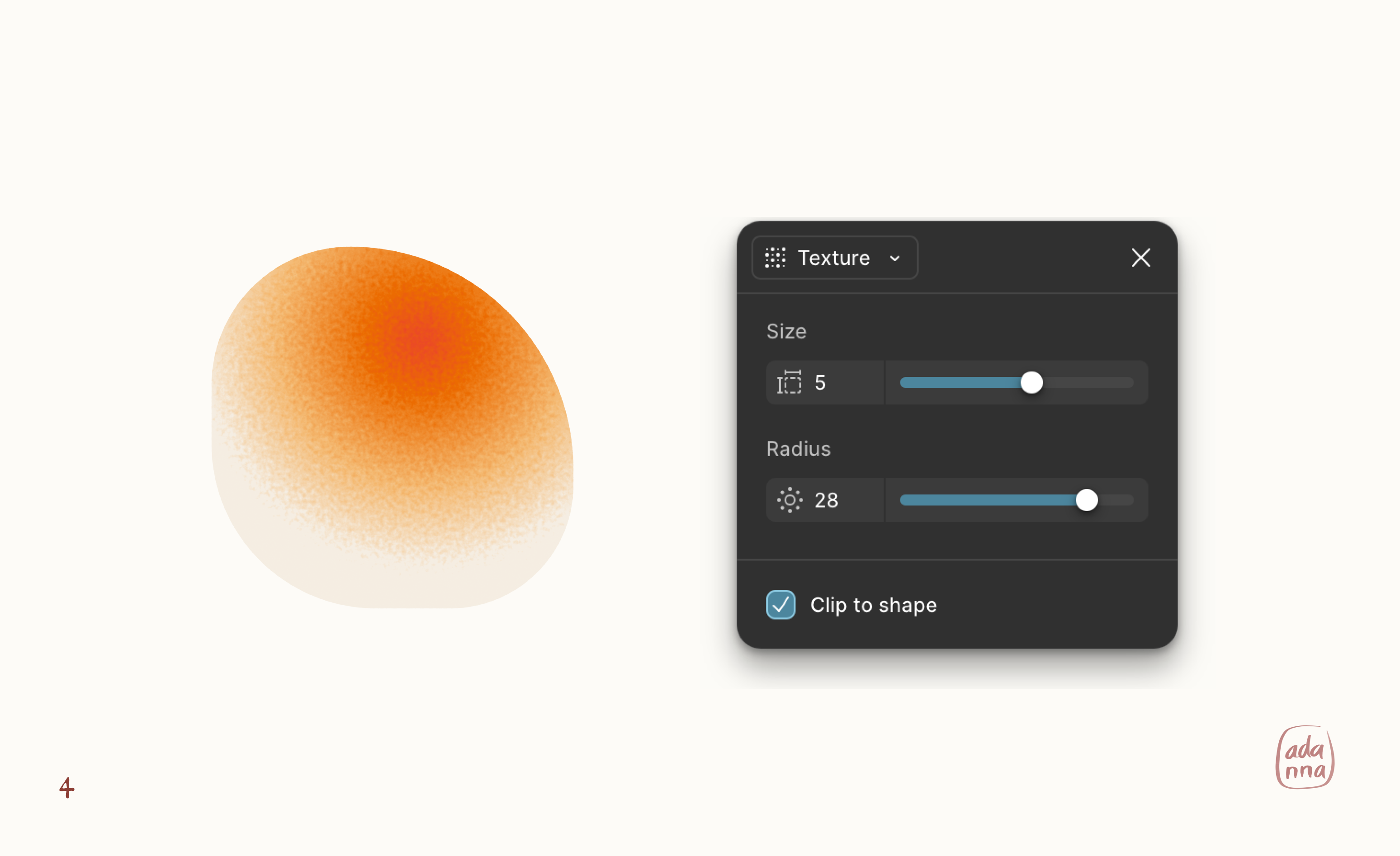
Apply a texture effect to the shape and have fun with the sliders until it looks right. Personally, I keep going until my ancestors tell me to stop. 😌
- Add highlights
Add some highlights to the bread using simple shapes and a similar texture effect as step 4 above. If you don’t want the texture confined to a shape, uncheck Clip to shape. We are using the lightest color in our gradient (#F5EDE2) for the first highlight, and white (#FFFFFF) for the second.
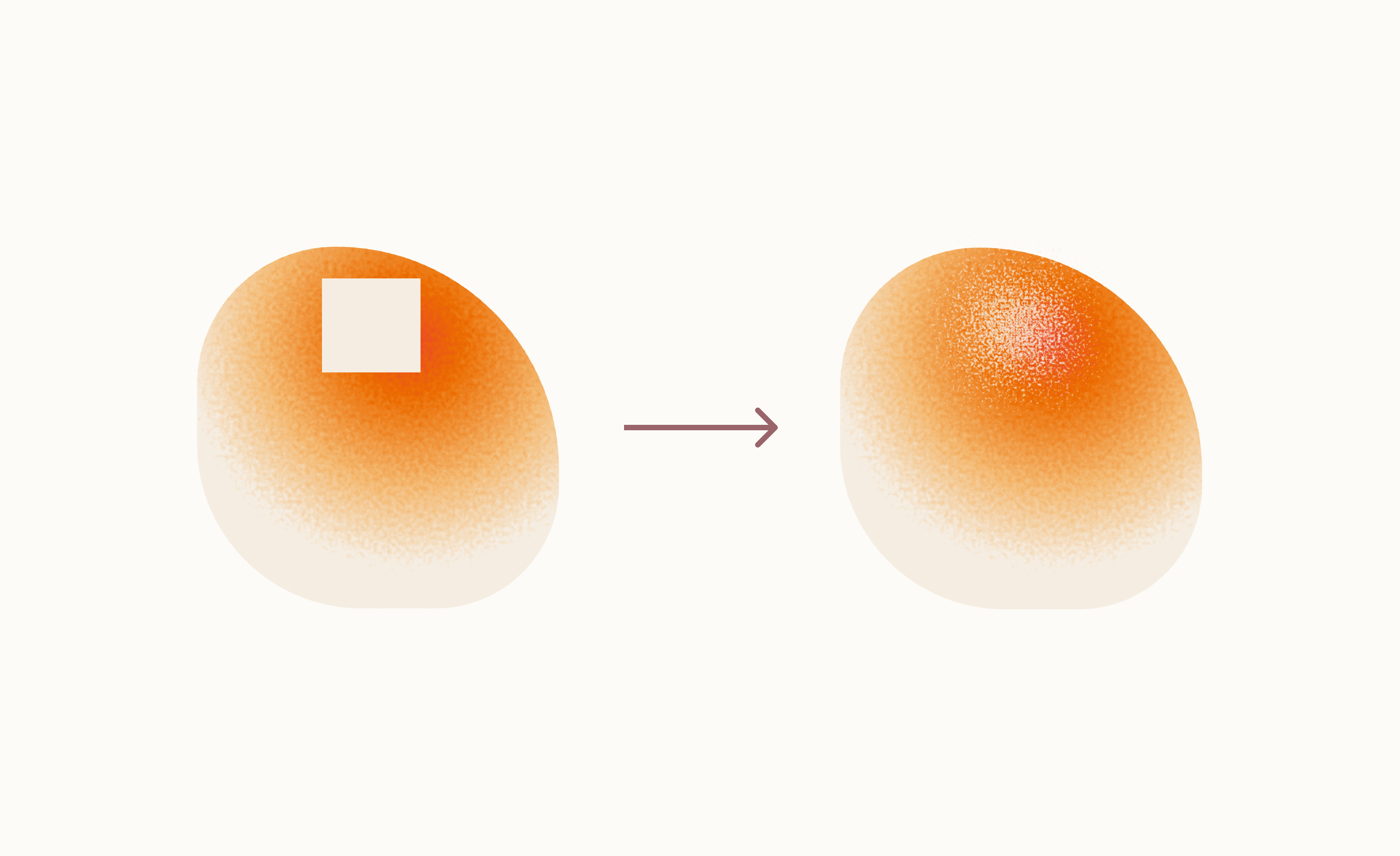
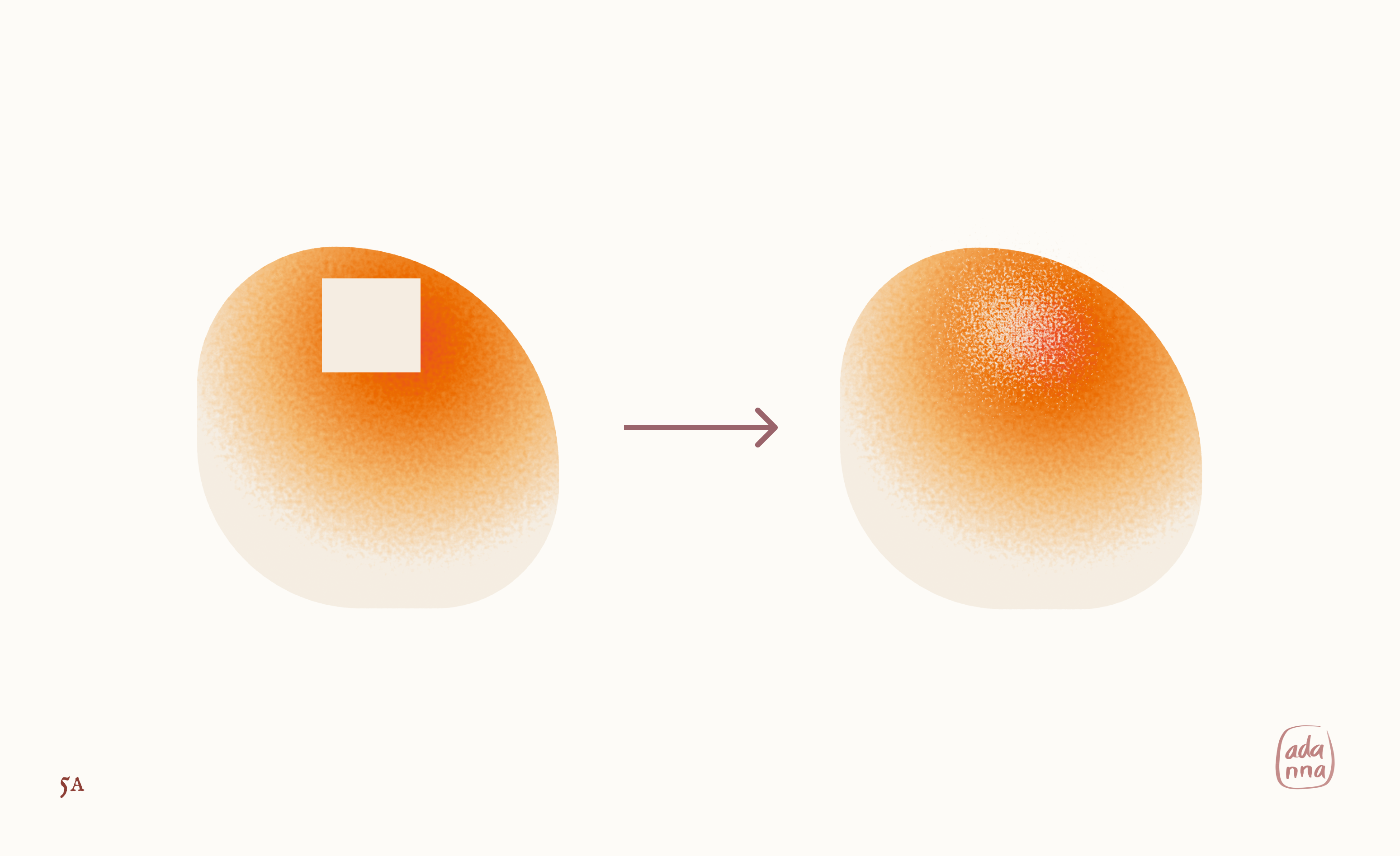
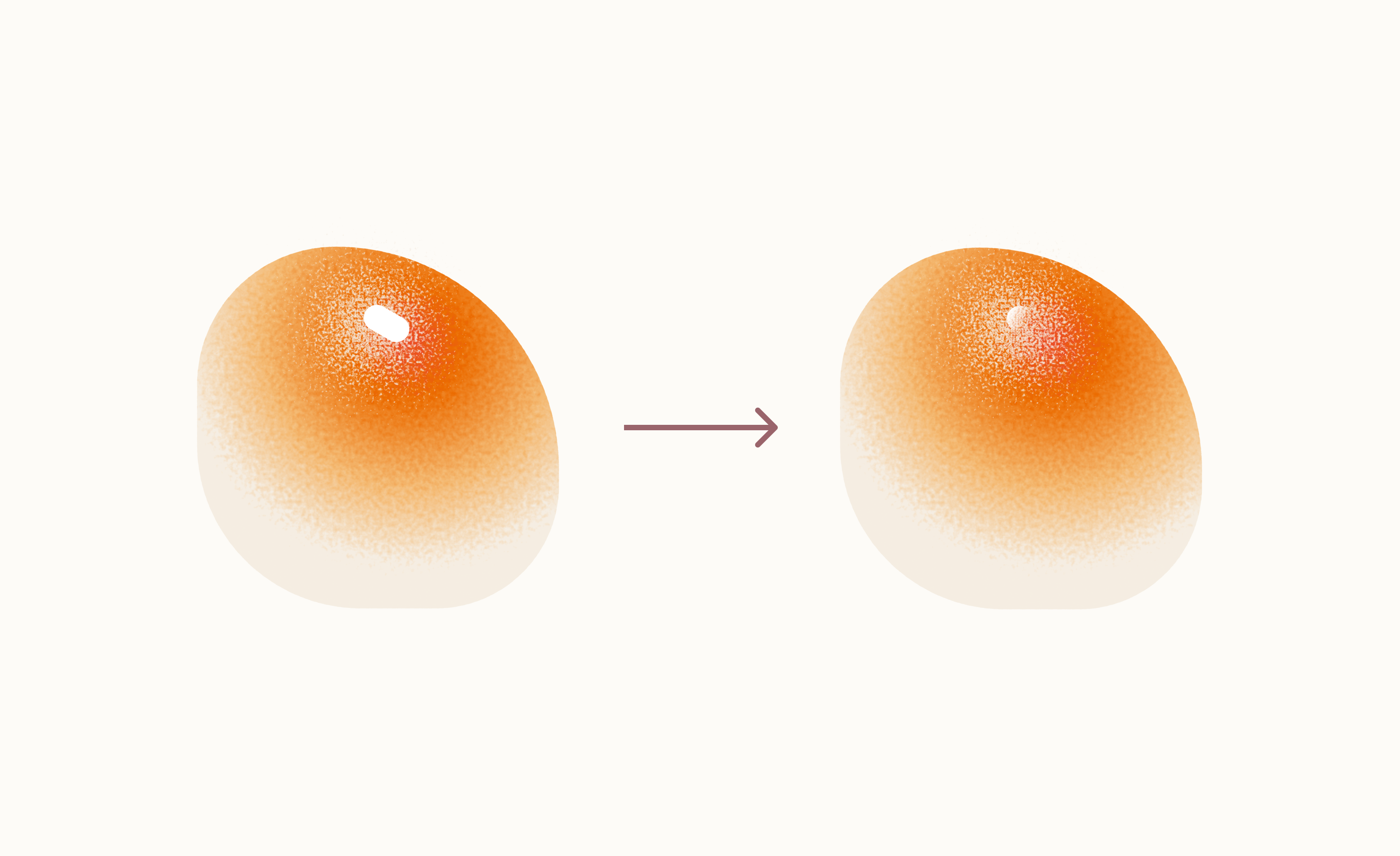
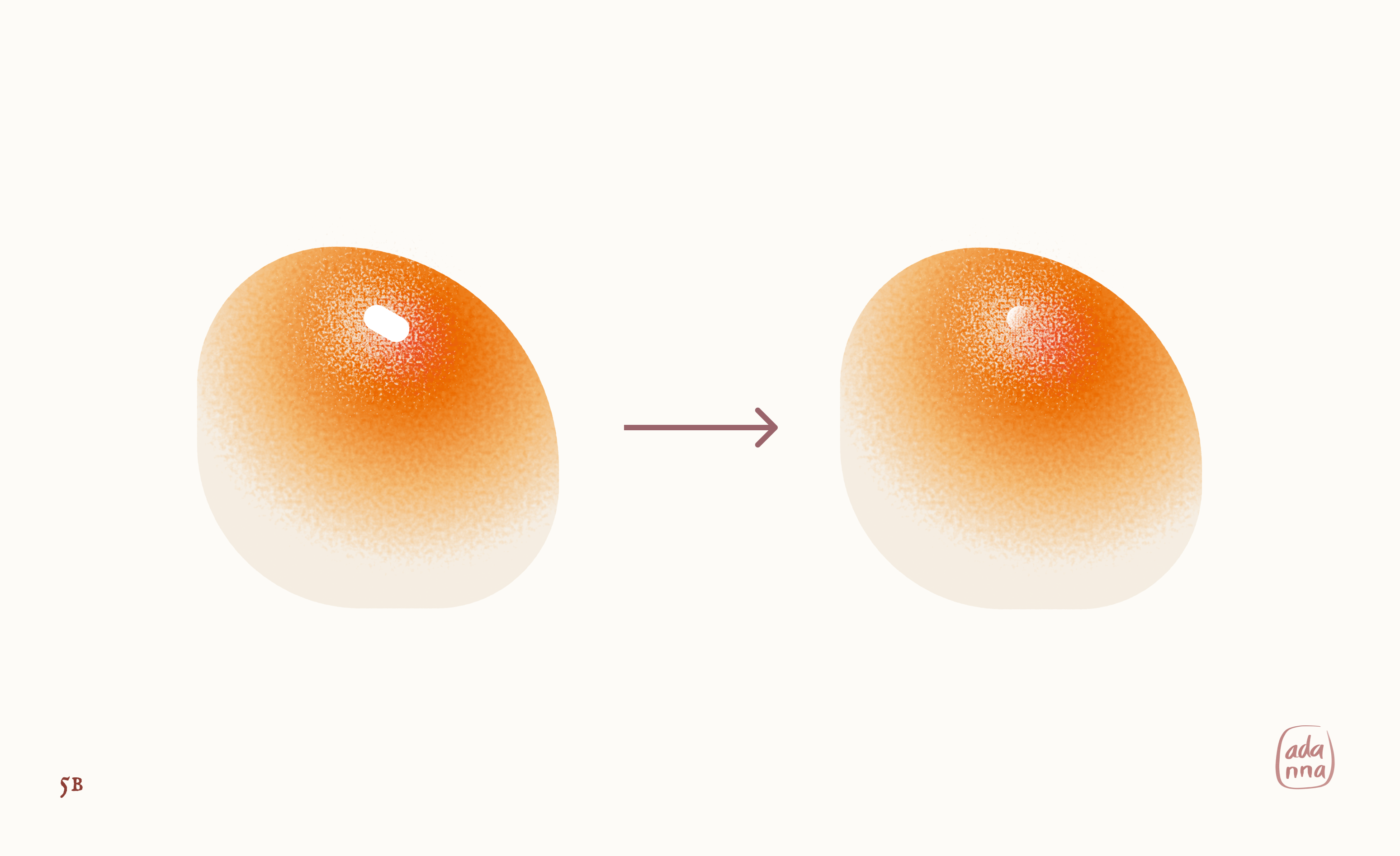
- Duplicate and assemble!
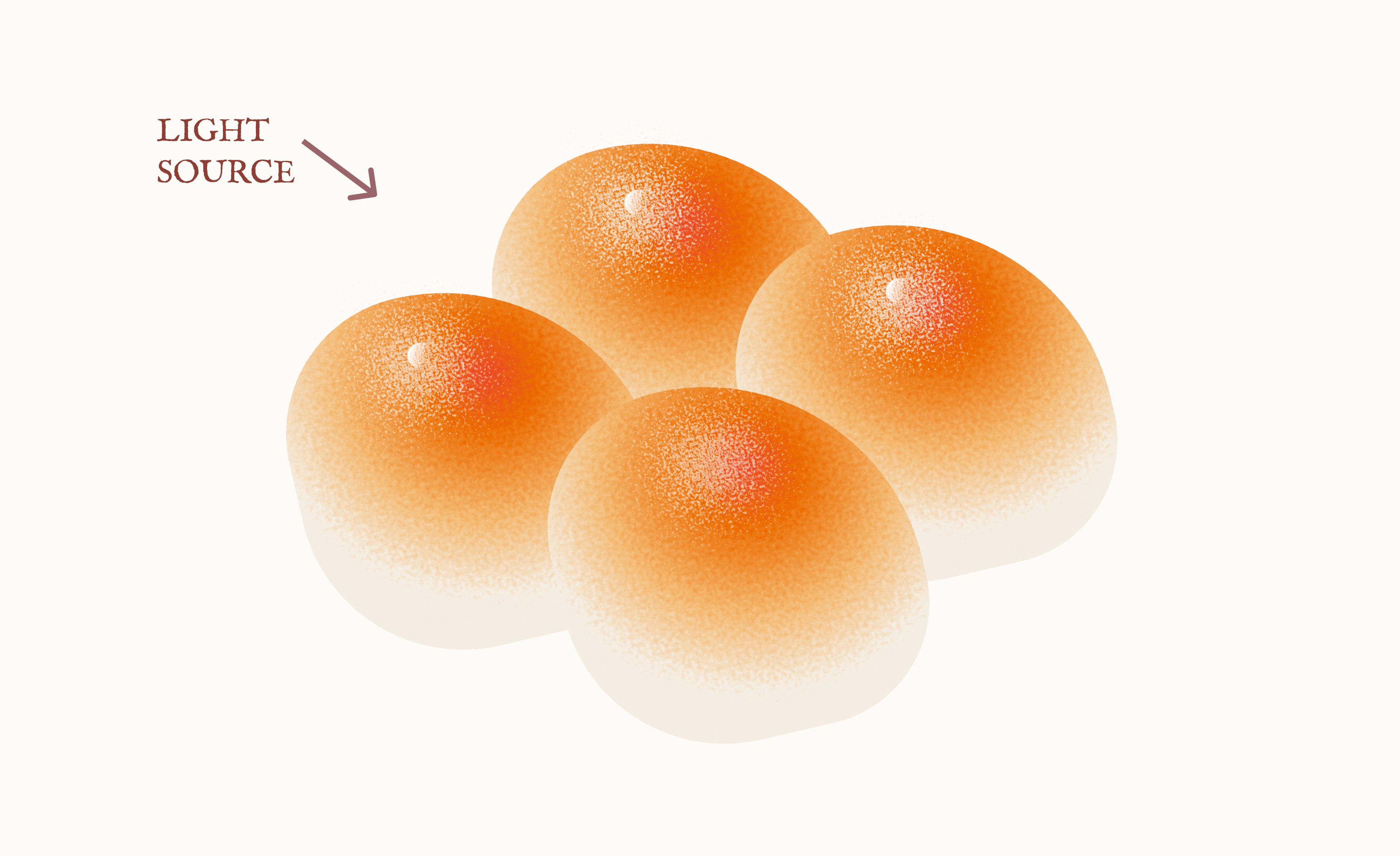
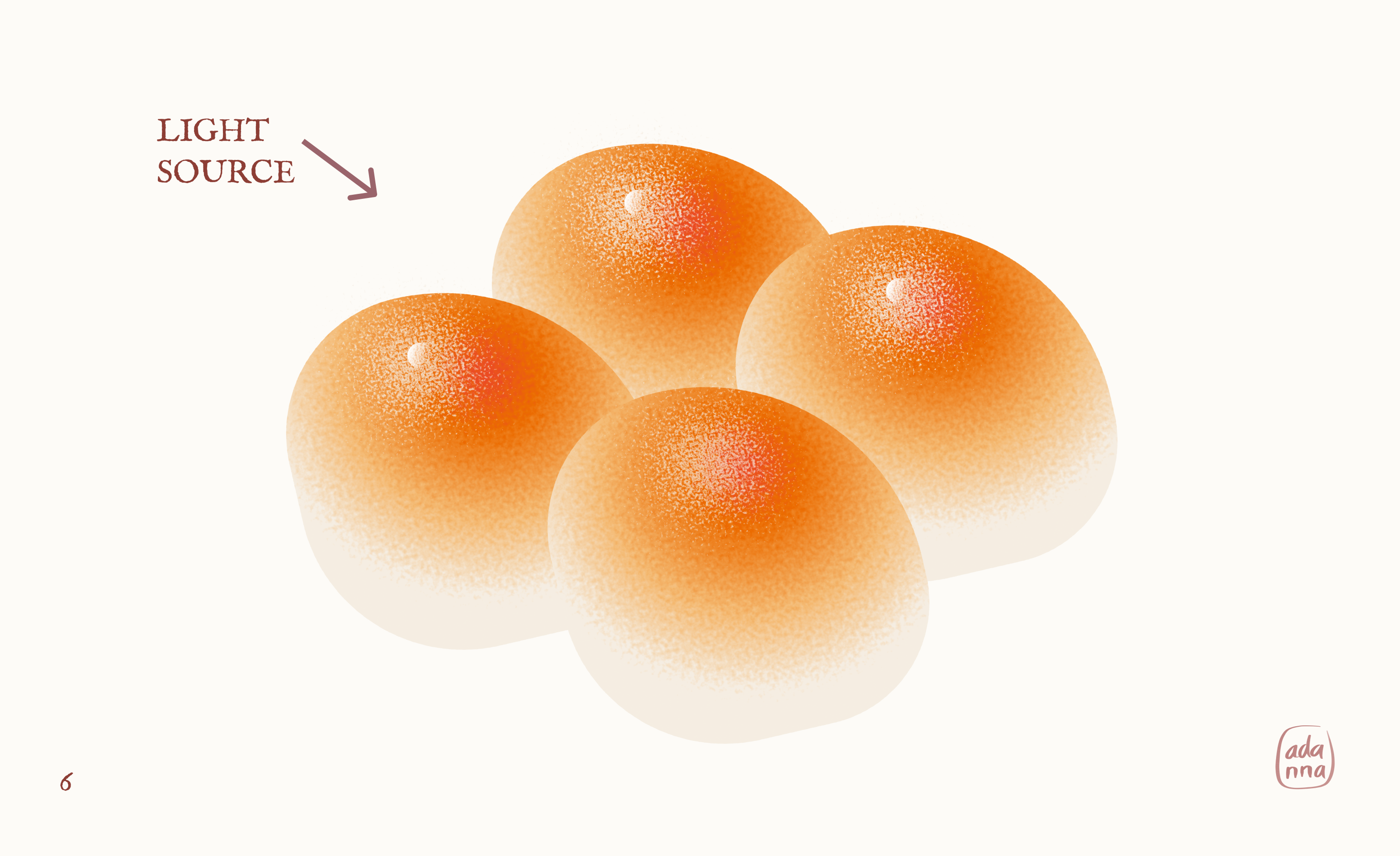
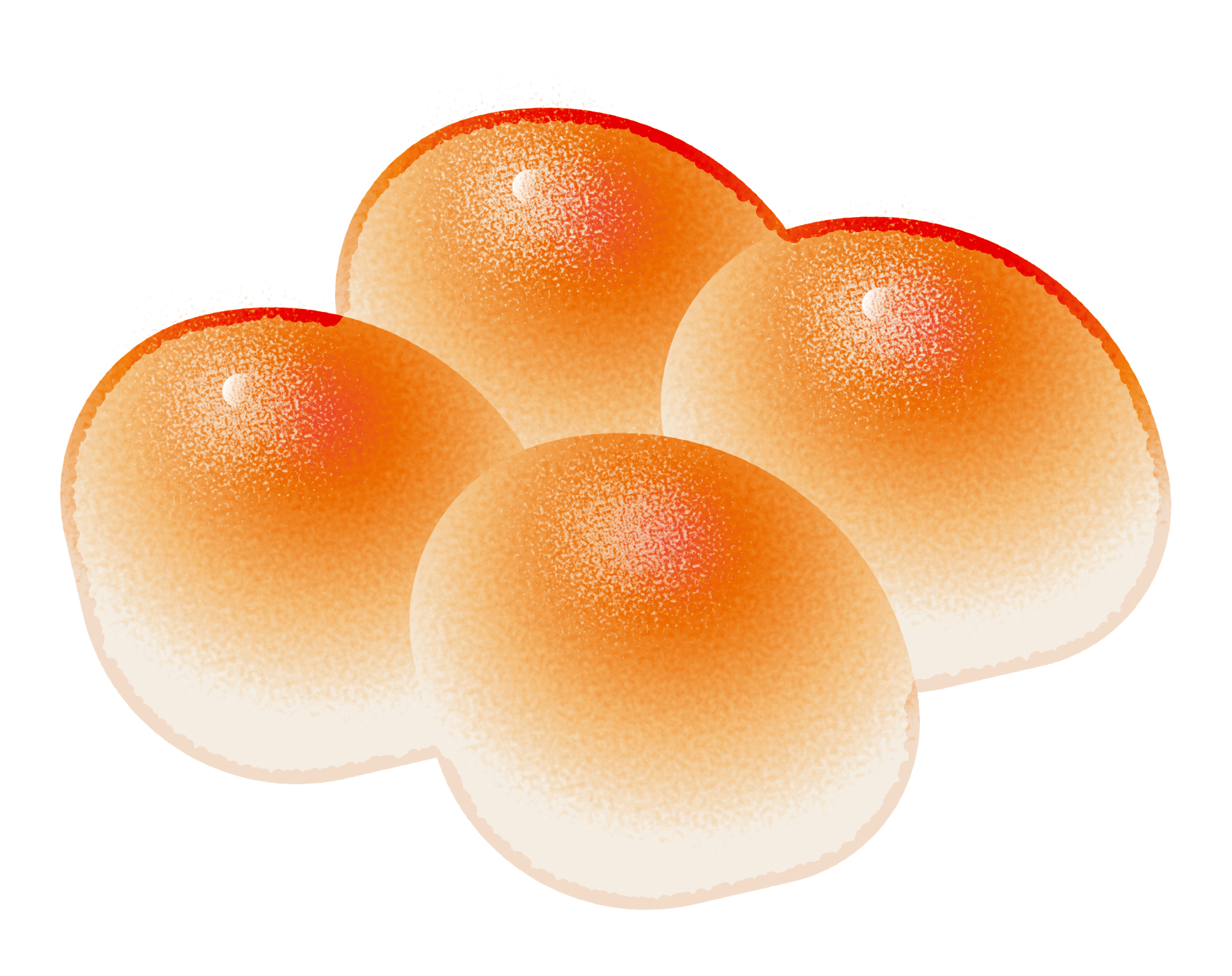
Duplicate the shape and assemble into the desired baked good. In this example we are making Brioche buns, so I made 3 copies and slightly rotated them. To help with realism after assembly, move the highlights on each bun slightly toward a single source of light.
- Create an outline for the combined shape
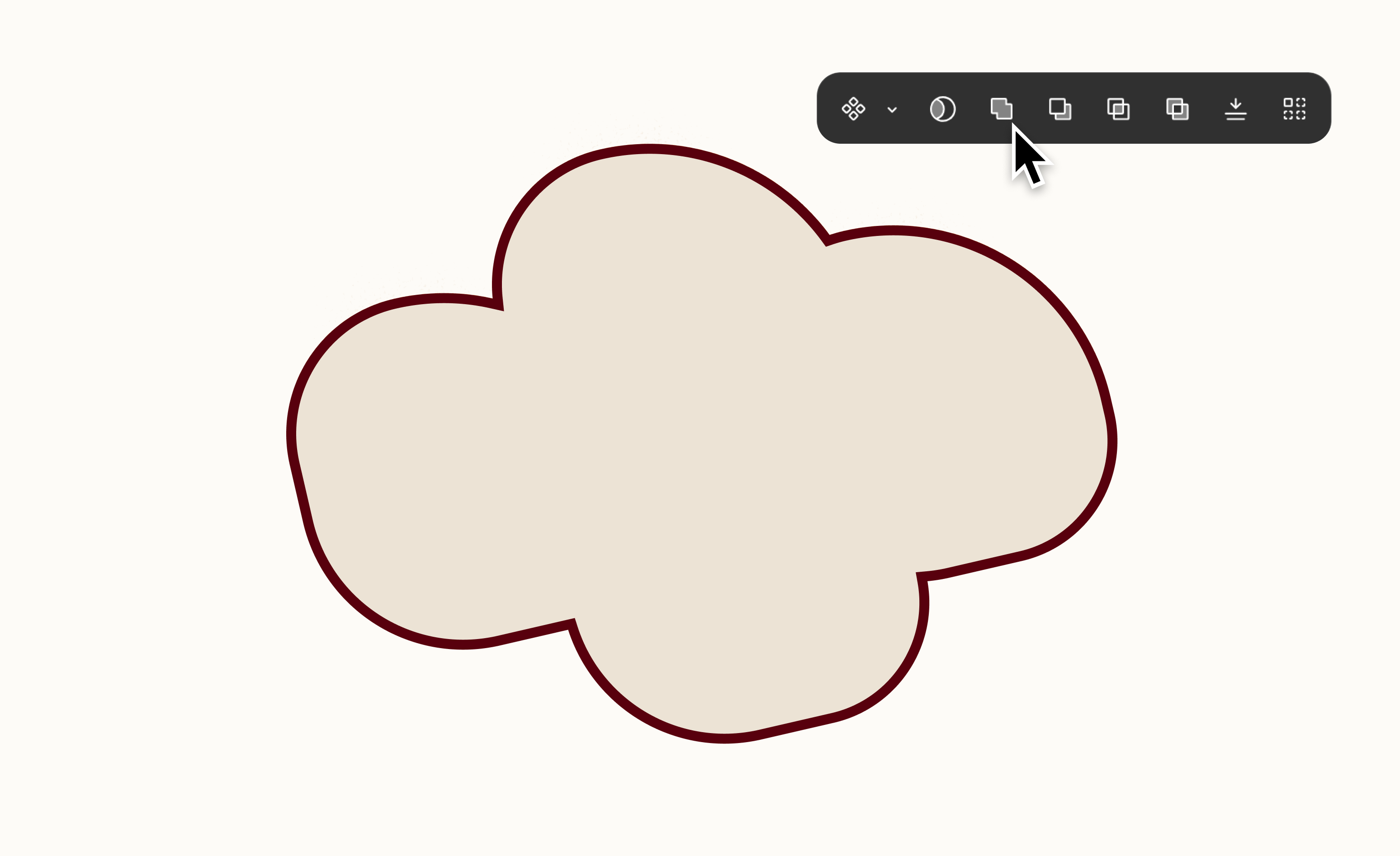
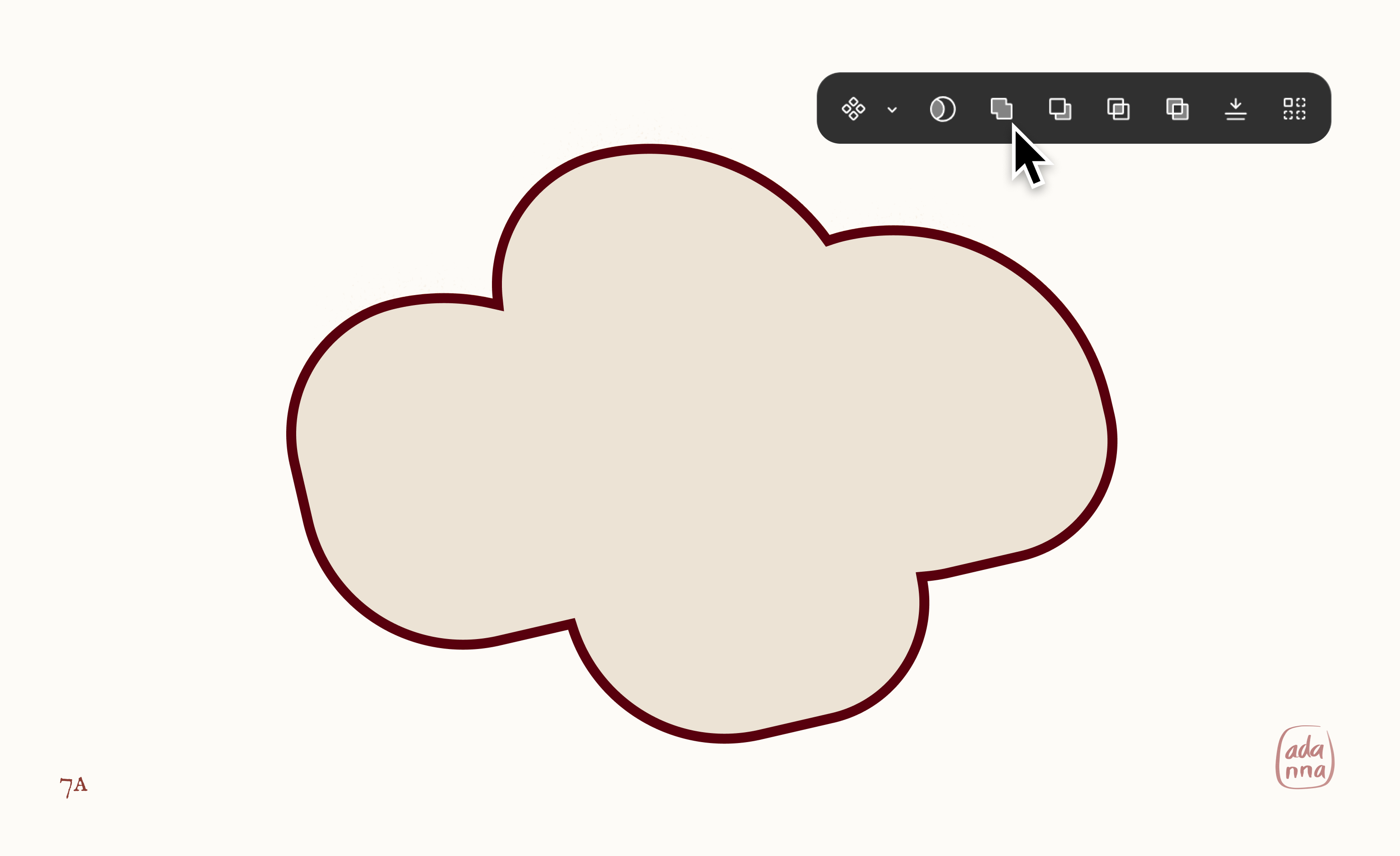
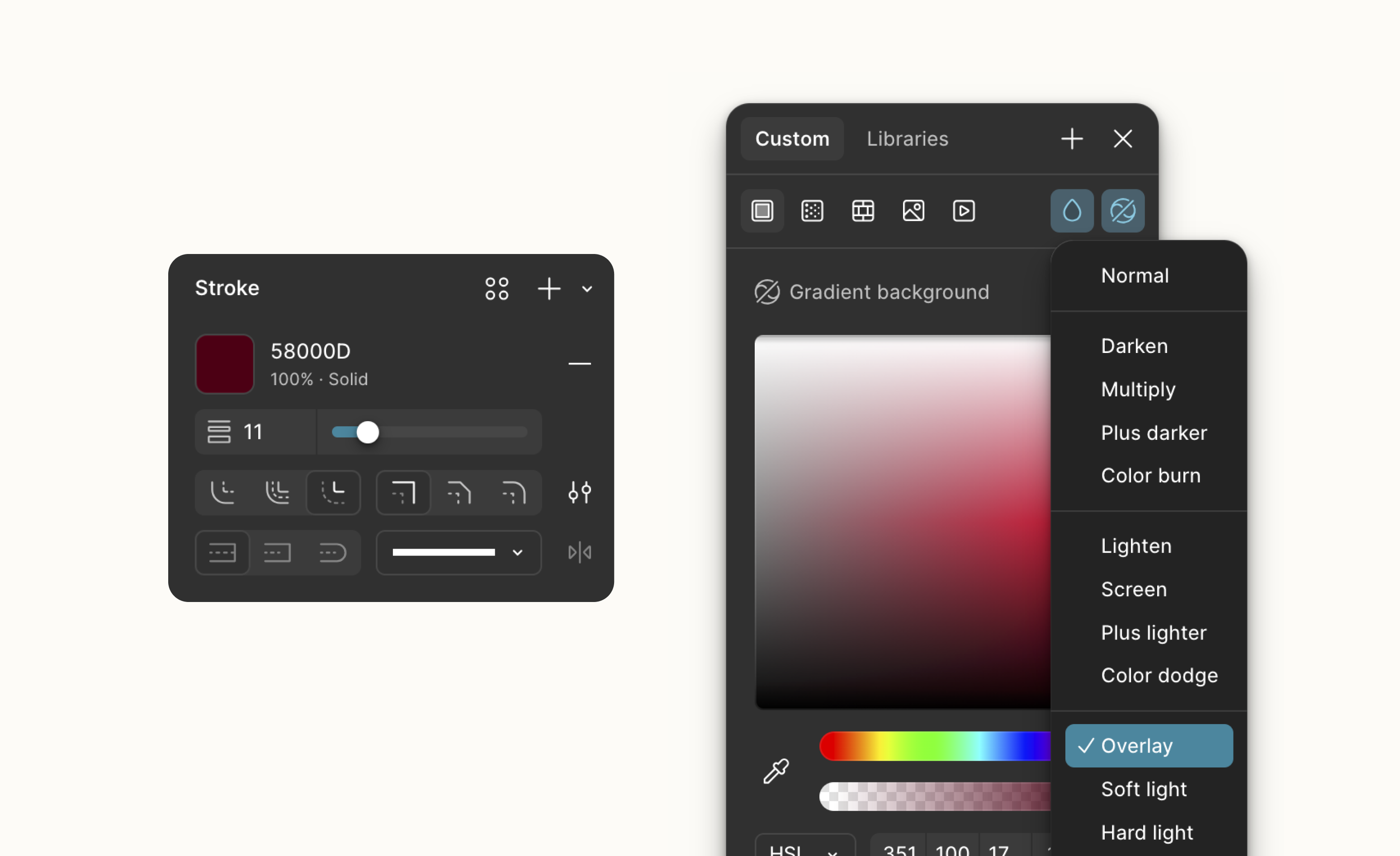
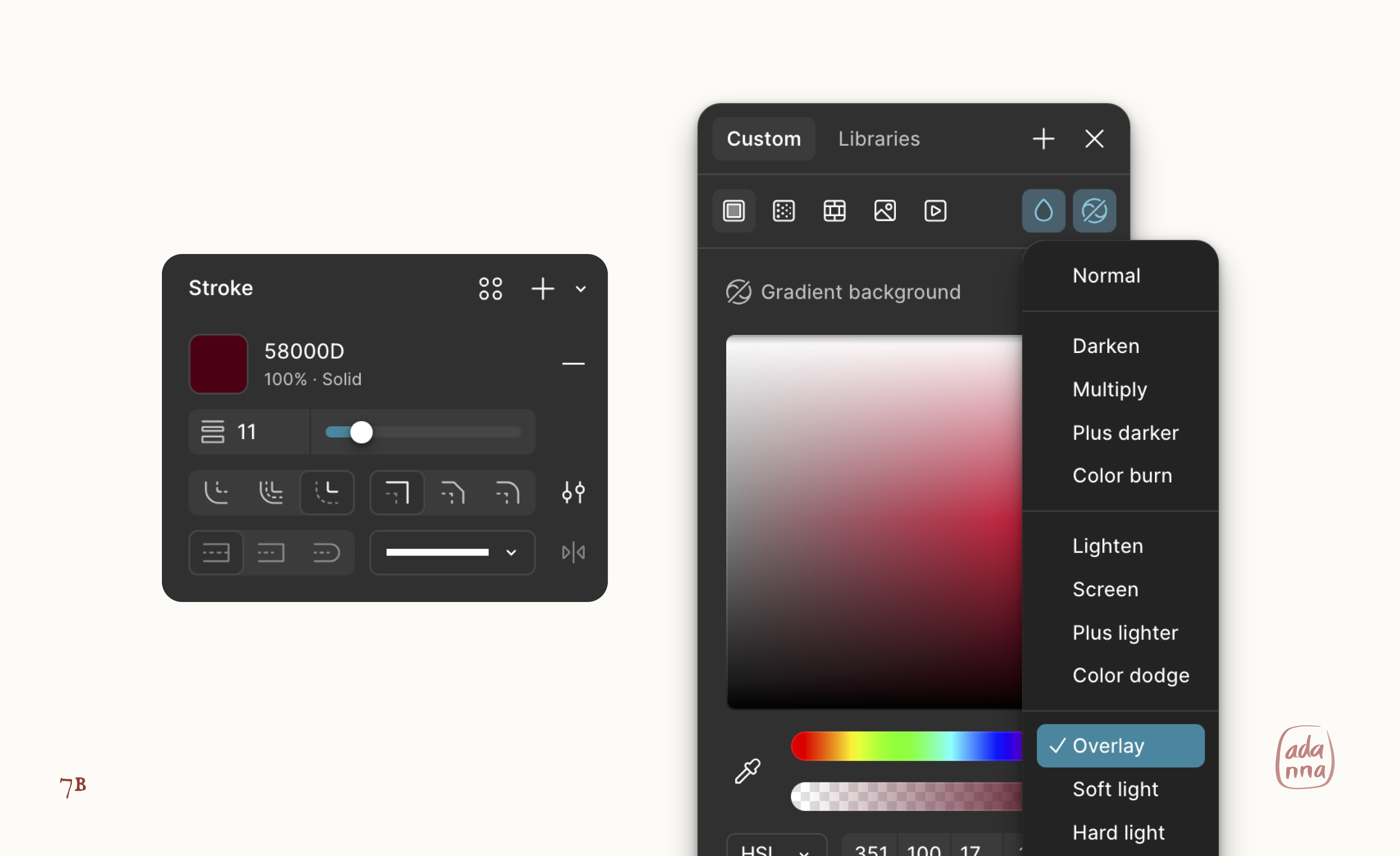
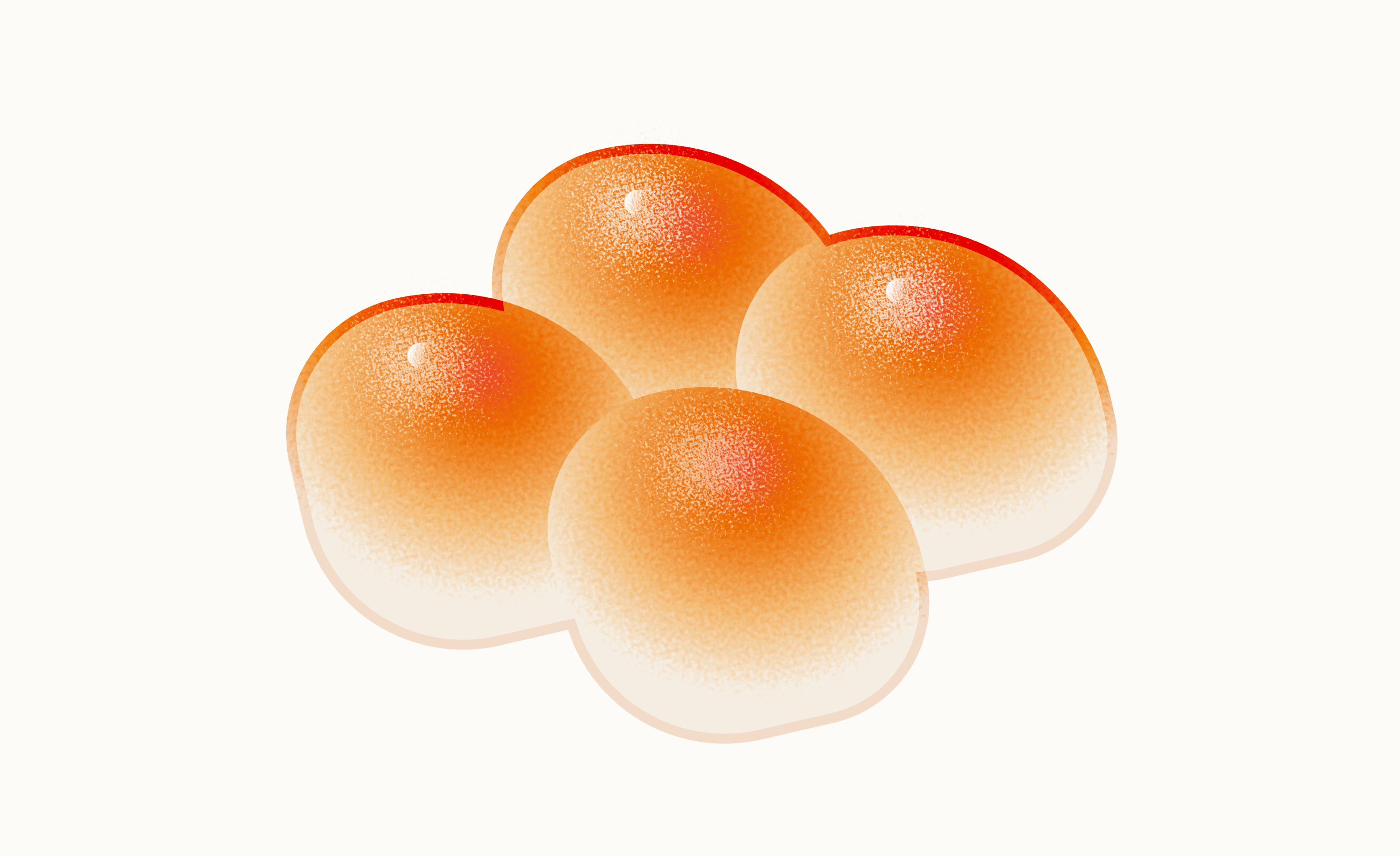
Make copies of the buns and Union the copies into a single shape. Next, flatten that shape and add a dark red stroke. Remove the fill (if there is one) and set the dark red stroke to Overlay.
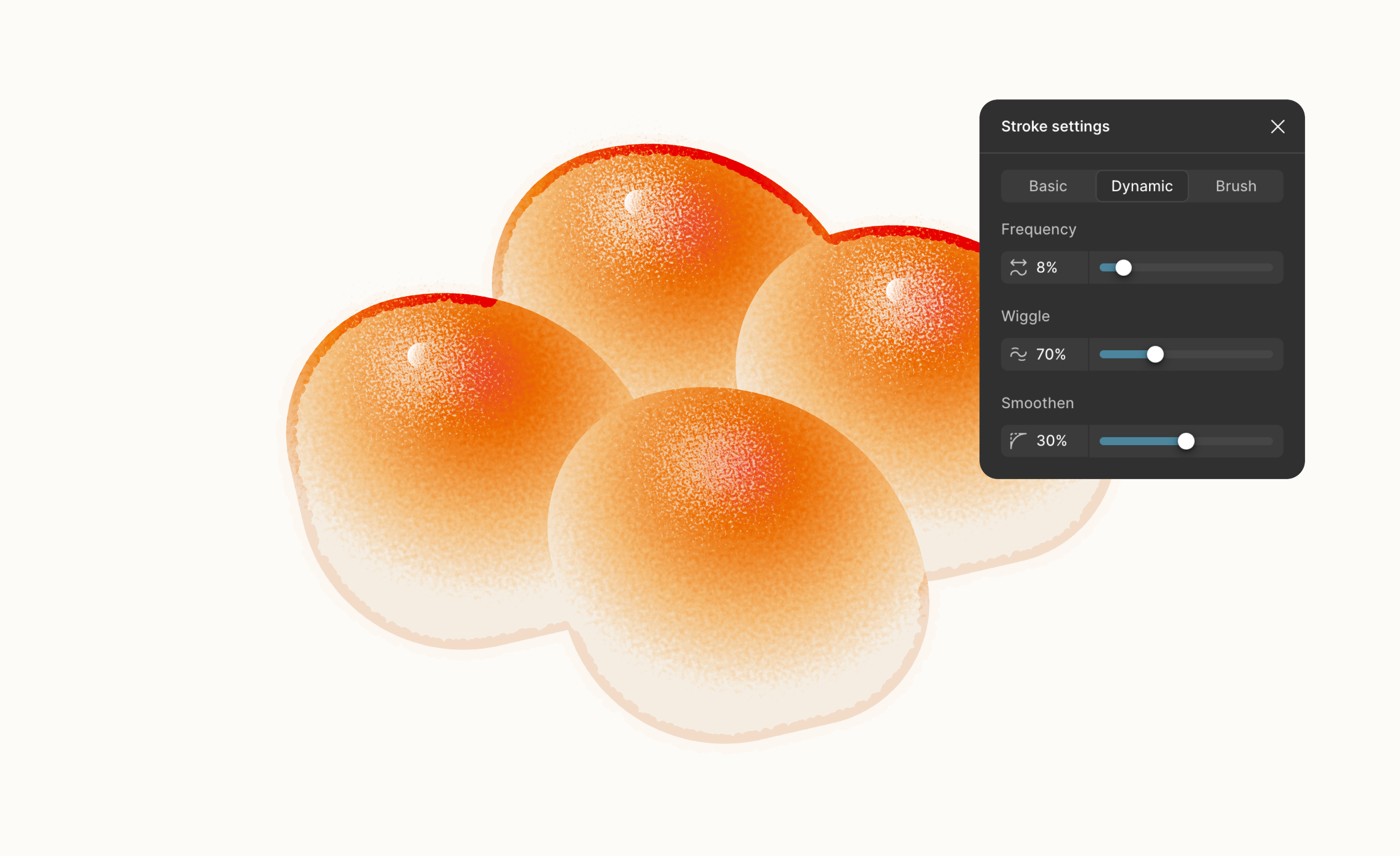
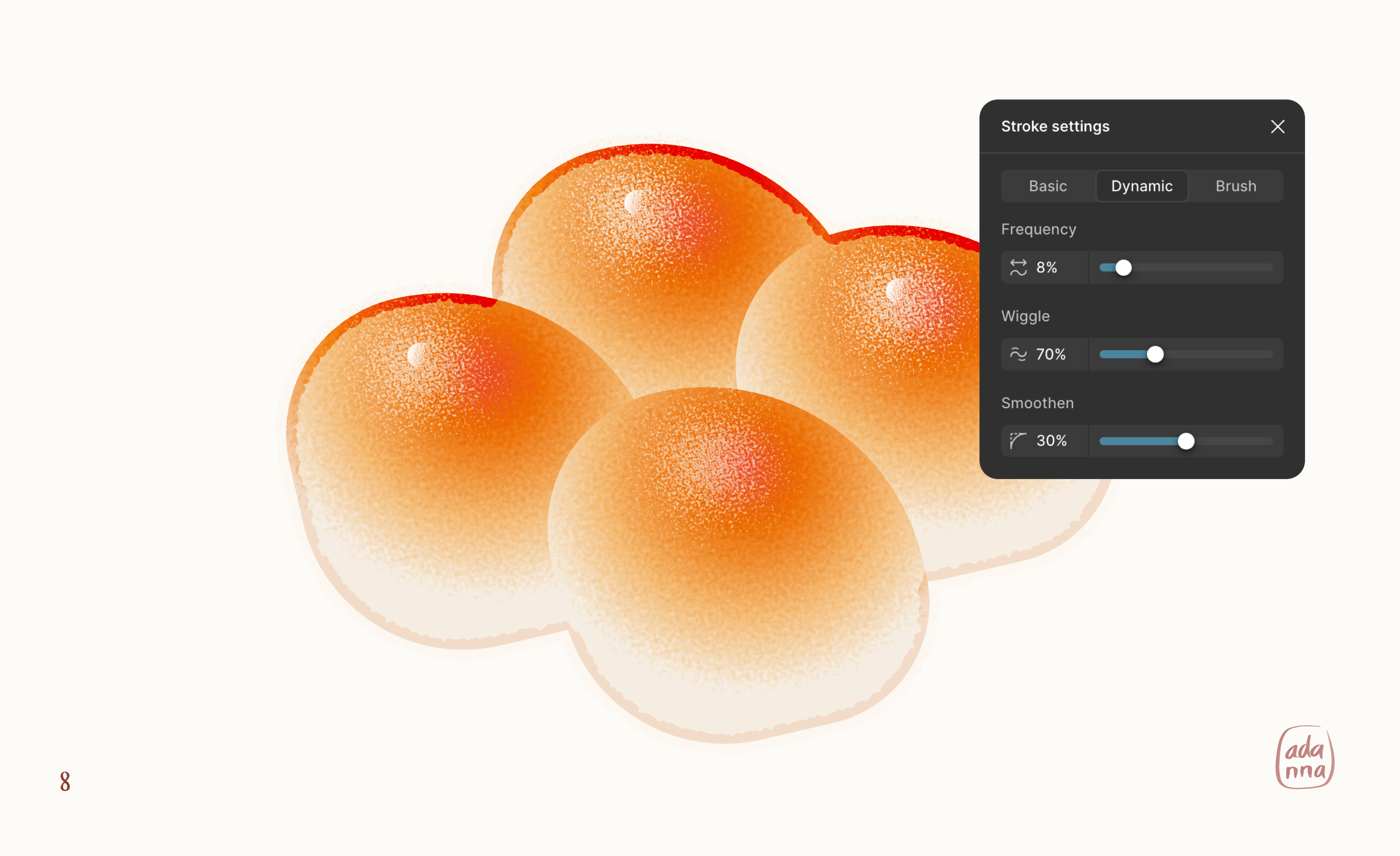
- Add a dynamic stroke (optional)
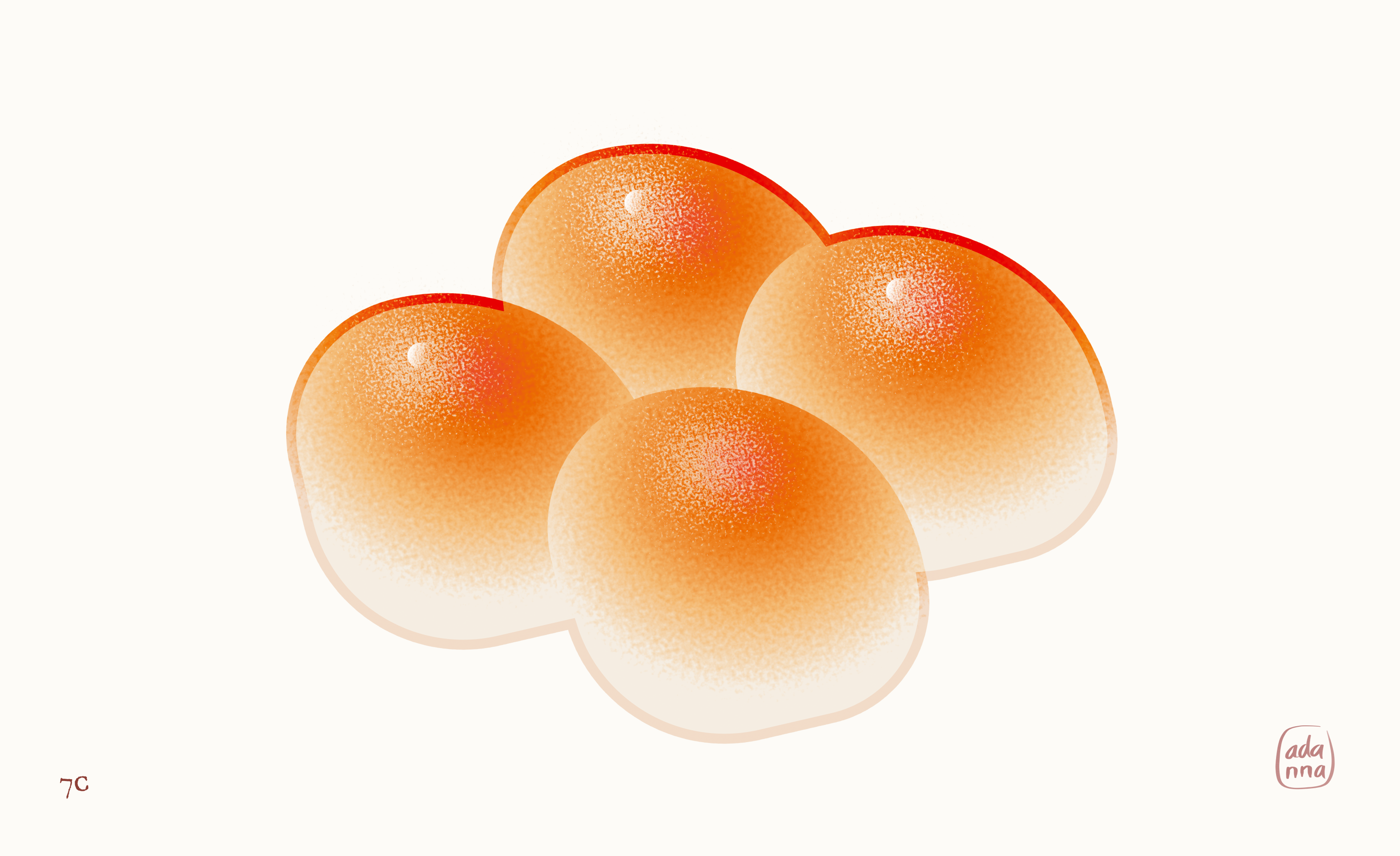
To add a hand-drawn feel to the outline, add dynamic stroke. It looks very fancy. ✨
- Add a sticker outline (optional)
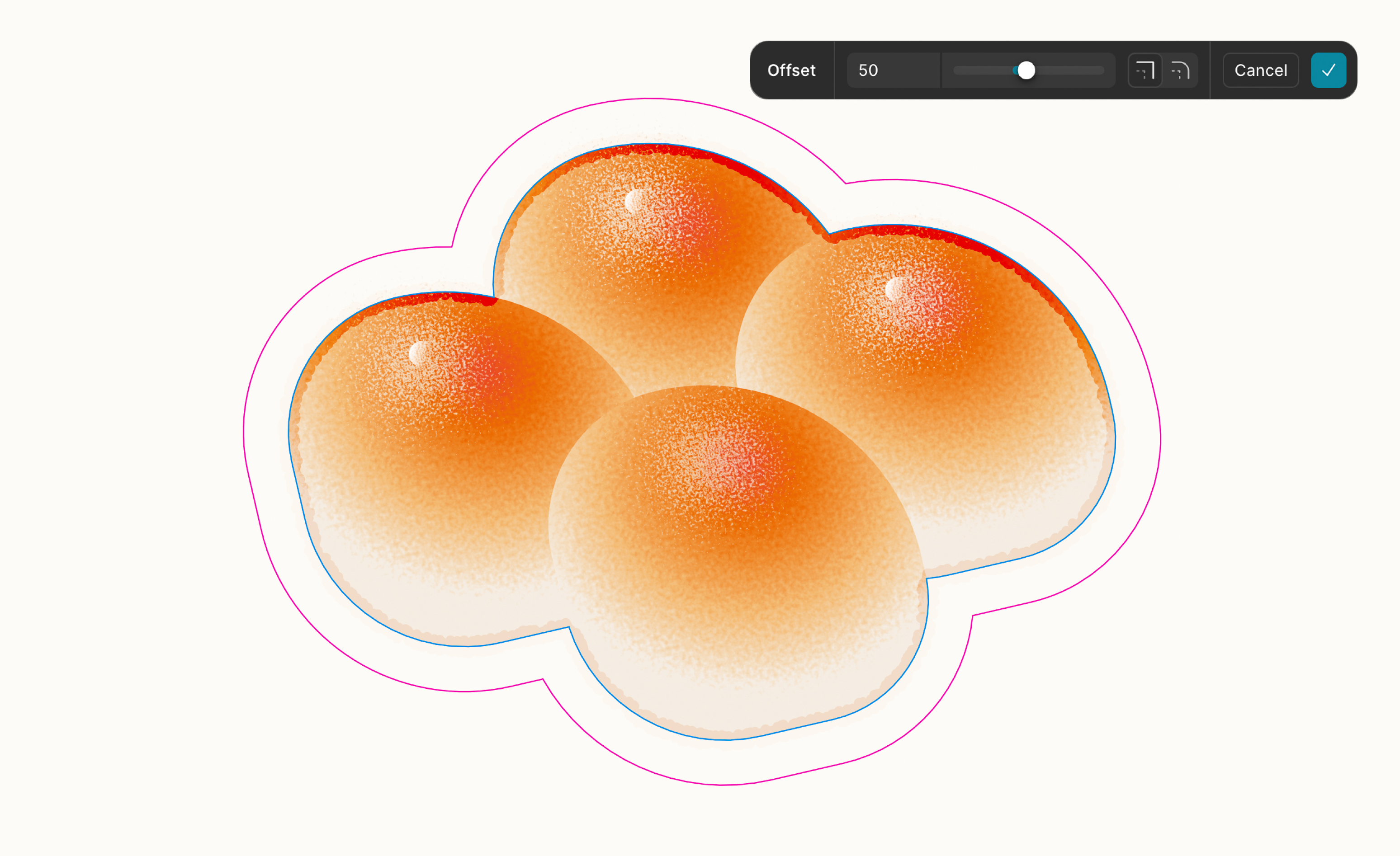
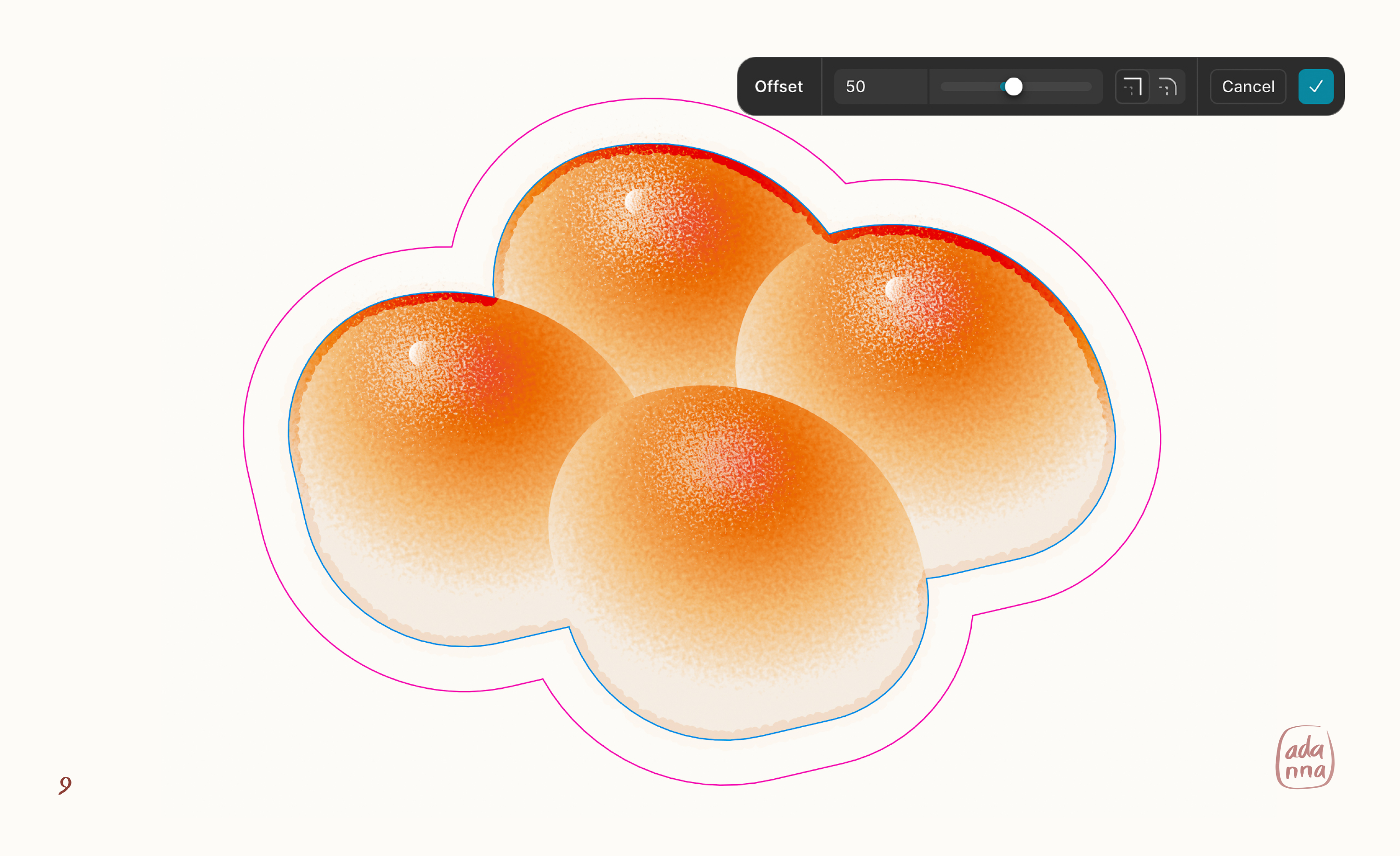
Duplicate the shape outline. Remove the stroke on the duplicate and add a white fill. Use the Offset Vector tool to offset the duplicate. Move the offset shape to the bottom of the layer list. (Keyboard shortcut is “[”)
- And we’re done!!
Congrats on your baked masterpiece. Go forth and bake more bread!

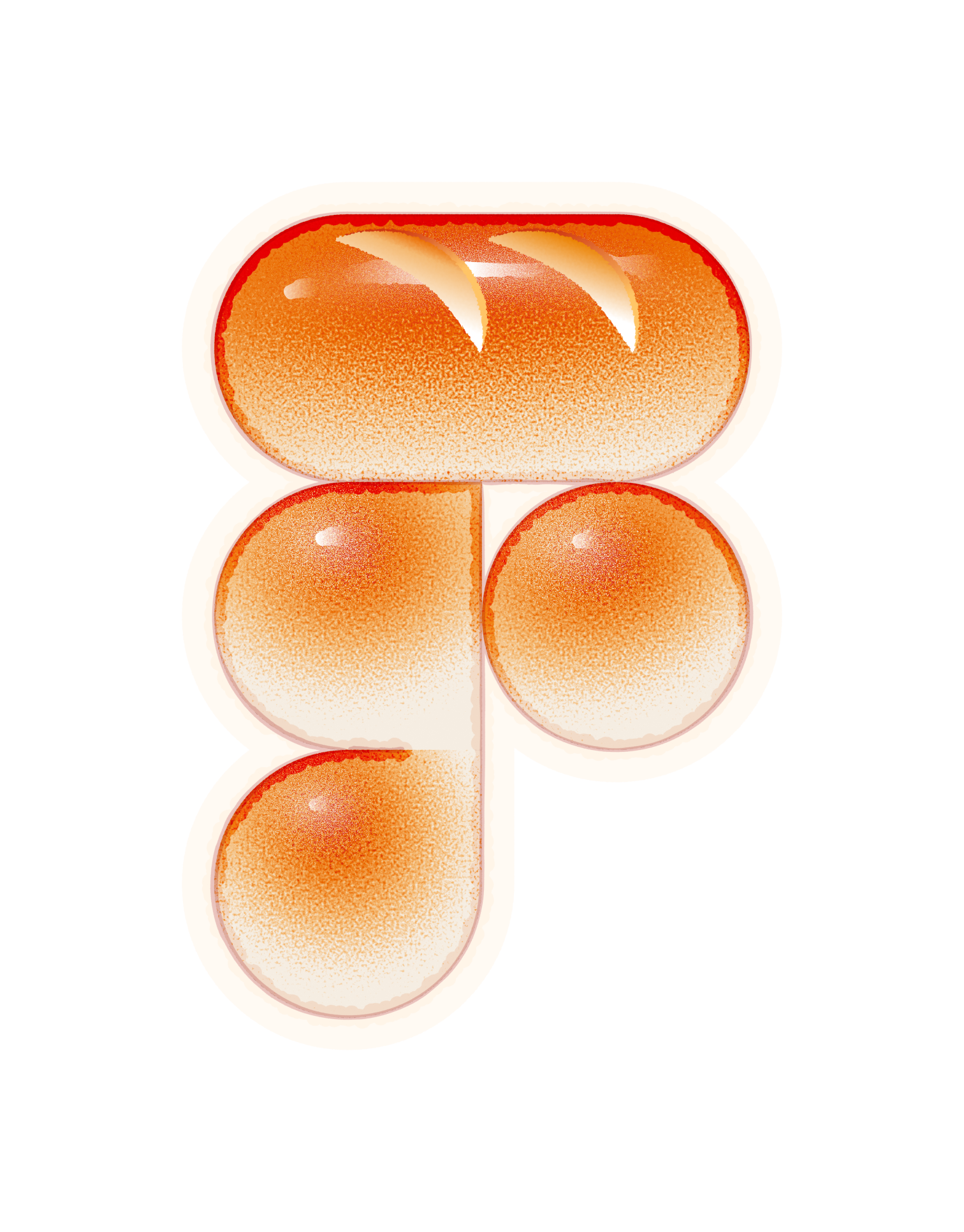
Here’s my Figma Bread Logo 🎉
how to BAKE bread
in figma draw
A 10-step illustration tutorial.
Hello! My name is Adanna and I recently got a chance to create a Bread themed logo for Figma (yay) and thought I would share my process on how to illustrate bread in Figma Draw. I initially made this website site and bread illustrations to try out the design workflow from Figma Draw to Figma Sites. Thanks for visiting and let’s get started! 🍞 🥐
🔔 Note
This tutorial requires some familiarity with Figma to follow along. I also recommend exploring the Figma Draw Playground file first to learn about all the cool illustration features available!

- Set up your bread gradient
We will re-use this radial gradient for all our bread buns. You can set up color styles or variables for the individual colors if need be.
- Start with a simple shape
Bread comes in all shapes and sizes. 😌 In this tutorial, we will be making Brioche buns! We will start with a simple rectangle and edit the radius to make it feel organic. You don’t have to use my exact values.
- Apply the gradient
Apply the radial gradient to the shape. It already looks like a bun. 10/10.
- Apply a texture effect
Apply a texture effect to the shape and have fun with the sliders until it looks right. Personally, I keep going until my ancestors tell me to stop. 😌
- Add highlights
Add some highlights to the bread using simple shapes and a similar texture effect as step 4 above. If you don’t want the texture confined to a shape, uncheck Clip to shape. We are using the lightest color in our gradient (#F5EDE2) for the first highlight, and white (#FFFFFF) for the second.
- Duplicate and assemble!
Duplicate the shape and assemble into the desired baked good. In this example we are making Brioche buns, so I made 3 copies and slightly rotated them. To help with realism after assembly, move the highlights on each bun slightly toward a single source of light.
- Create an outline for the combined shape
Make copies of the buns and Union the copies into a single shape. Next, flatten that shape and add a dark red stroke. Remove the fill (if there is one) and set the dark red stroke to Overlay.
- Add a dynamic stroke (optional)
To add a hand-drawn feel to the outline, add dynamic stroke. It looks very fancy. ✨
- Add a sticker outline (optional)
Duplicate the shape outline. Remove the stroke on the duplicate and add a white fill. Use the Offset Vector tool to offset the duplicate. Move the offset shape to the bottom of the layer list. (Keyboard shortcut is “[”)
- And we’re done!!
Congrats on your baked masterpiece. Go forth and bake more bread!

Here’s my Figma Bread Logo 🎉